





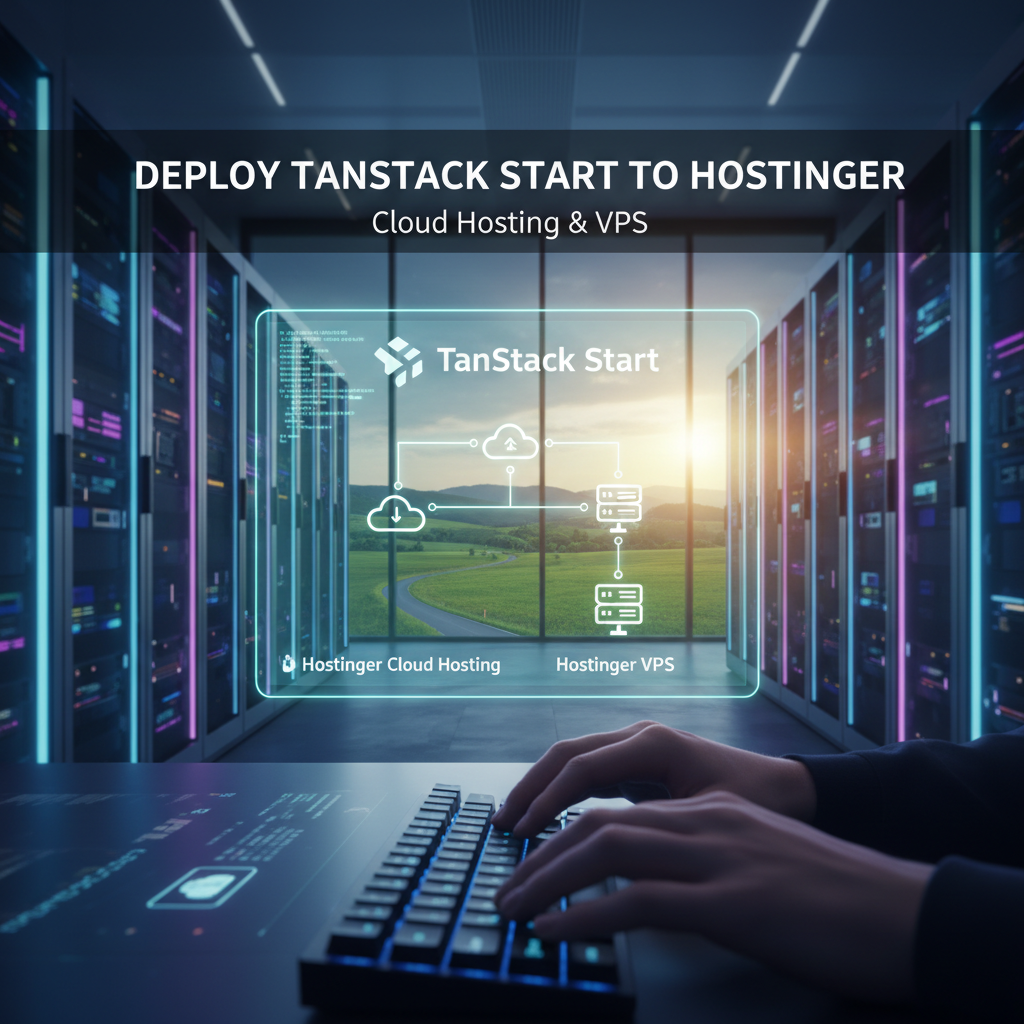
How to Deploy Tanstack Start Application to Hostinger on Cloud Hosting or VPS
This post has been read 8 times.
Introduction
Deploying a Tanstack Start application can seem like a daunting process, especially if you are new to deployment on platforms like Hostinger. However, with the right approach and guidance, you can have your applications running on the web in no time. Whether you’re using cloud hosting or a Virtual Private Server (VPS), this guide will walk you through each step, ensuring you have a smooth deployment experience.
Tanstack offers a powerful combination of TypeScript support and server-side rendering (SSR), making it an excellent choice for modern web applications. Let’s dive into how you can effectively deploy your Tanstack Start application.
Understanding Tanstack Start
Tanstack Start is part of the Tanstack library, which is known for its versatility and flexibility. It allows you to build applications using React and TypeScript, providing a strong type-safe environment. The integration of server-side rendering ensures your application is optimized for performance and SEO.
Key Features of Tanstack Start
1. Type Safety: With TypeScript, you can catch errors during development, leading to more robust applications.
2. Server-Side Rendering: Improves performance and enhances SEO by delivering content more quickly to users.
3. Ease of Deployment: Compatible with various hosting platforms, including Hostinger.
Pre-Requisites for Deployment
Before deploying your Tanstack Start application, ensure you have the following:
– An active Hostinger account.
– Basic knowledge of React and TypeScript.
– A working Tanstack Start application.
– Familiarity with Node.js and npm (Node Package Manager).
Step 1: Preparing Your Tanstack Start Application
Build Your Application
The first step is to generate a production build of your application. Navigate to your app’s root directory in the terminal and execute the following command:
“`bash
npm run build
“`
This command compiles your application into static files, preparing it for deployment. The build output is typically created in a `dist` or `build` folder.
Verify the Build
After the build process completes, ensure that your application works as expected. You can test it locally using a static file server:
“`bash
npx serve -s build
“`
Visit `http://localhost:5000` in your browser to check your application.
Step 2: Set Up Hostinger
Choose Your Hosting Plan
Hostinger provides various hosting options, including shared hosting, cloud hosting, and VPS plans. For Tanstack Start applications, a VPS or cloud hosting plan is recommended for better performance and resource management.
Once you have selected a plan, log in to your Hostinger account and access your control panel.
Create a New Project
1. In your Hostinger dashboard, find the option to create a new project.
2. Select the type of hosting you are using (cloud or VPS).
3. Set up your environment, ensuring that Node.js is installed on your server.
Step 3: Upload Your Application Files
Using FTP
One of the most common ways to upload your files to the server is through FTP (File Transfer Protocol). Here’s how to do it:
1. Download an FTP client such as FileZilla.
2. Connect to your Hostinger account by entering your FTP credentials (available in the control panel).
3. Navigate to the `public_html` or desired directory.
4. Upload the contents of your `build` or `dist` folder directly to your server.
Terminal Upload via SSH
If you are comfortable with command-line interfaces, you can also upload your files via SSH:
1. Open your terminal or command prompt.
2. Connect to your server with:
“`bash
ssh username@your-domain.com
“`
3. Navigate to your desired directory using `cd` and then use command-line tools like `scp` to copy the files directly.
“`bash
scp -r build/* username@your-domain.com:/path/to/directory
“`
Step 4: Configure Your Application on Hostinger
Once your files are uploaded, you need to configure your hosting environment:
Install Node.js Dependencies
1. SSH into your server if you haven’t already.
2. Navigate to the directory where your application resides.
3. Run:
“`bash
npm install
“`
This will install any dependencies your application requires.
Configure the Server
For server-side rendering, you need to ensure your server can execute your Node.js application. Create a file named `server.js` and configure it as follows:
“`javascript
const express = require(‘express’);
const app = express();
const path = require(‘path’);
app.use(express.static(path.join(__dirname, ‘build’)));
app.get(‘*’, (req, res) => {
res.sendFile(path.join(__dirname, ‘build’, ‘index.html’));
});
const PORT = process.env.PORT || 3000;
app.listen(PORT, () => {
console.log(`Server is running on port ${PORT}`);
});
“`
Start the Server
To start your server, run:
“`bash
node server.js
“`
You can use a tool like PM2 to manage your Node.js application, allowing it to run continuously:
“`bash
npm install pm2 -g
pm2 start server.js
“`
Step 5: Set Up Domain and SSL
Assign a Domain
If you haven’t done so, go to Hostinger’s domain management panel and link your domain to your hosting account.
Enable SSL
Secure your application by setting up SSL. Hostinger provides a built-in SSL setup tool that simplifies this process. This way, you ensure that your application is secure and trusted by users.
Step 6: Monitor and Optimize
Once your application is live, keep an eye on its performance. Utilize analytics and monitoring tools to track your application’s health, user engagement, and performance metrics.
Conclusion
Deploying your Tanstack Start application to Hostinger is an achievable task with the right preparation and knowledge. By following the steps outlined in this guide, you can successfully launch your React application using TypeScript and enjoy the benefits of server-side rendering.
If you’re looking for professional assistance in web application deployment, consider contacting [DRTSWebWorks](https://drtswebworks.com) for expert guidance and support. With the right team by your side, your transition to a live application can be seamless and effective.
Final Thoughts
In the rapidly changing world of web development, knowing how to deploy applications using reliable hosting services is essential. By mastering the deployment of your Tanstack Start application, you enhance your skill set and improve your project’s visibility. Whether you’re a developer or a business owner, leveraging Tanstack’s capabilities allows for greater control over your web applications and ensures a fantastic user experience.